 Adapt Pro Toolbox
Help
What each setting does, with an example for each, and how the tools use them. Settings are shared by every computer in your shop, and every save is kept in the change history, so nothing you try is permanent.
First day setup
Open Toolbox settings (the button in the side panel's settings, or app.adaptprotoolbox.com). The Set up your shop checklist at the top walks through seven steps and marks each one done. Do them in order; the tools get better with each one.
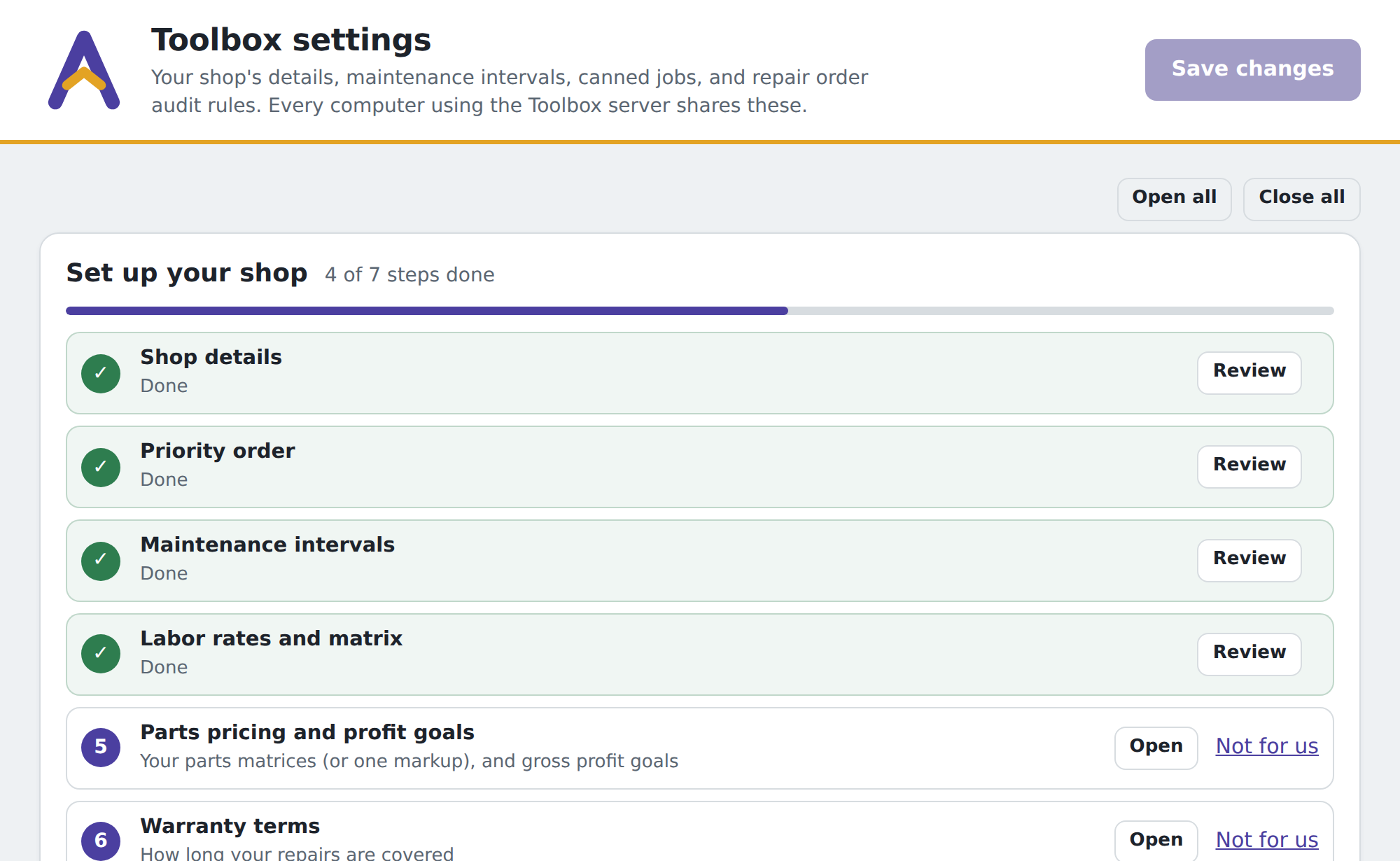
| Step | What it unlocks |
|---|---|
| Shop details | Your name, phone, and logo on the printed customer report and the oil change sticker. |
| Priority order | Presentation Prep's groups and the tags the Toolbox reads and writes on job names. |
| Maintenance intervals | The maintenance check. Nothing is checked until an interval exists for it. |
| Labor rates and matrix | The audit's labor rate checks and the Get to goal math. |
| Parts pricing and profit goals | Parts matrices and the GP tiles on every audit. |
| Warranty terms | Comeback warnings when a repair is redone inside its warranty. |
| Inspection jobs and opening line | Which jobs are inspections, and the first line of their note on the invoice. |
Signing in
Three ways, all with the email your shop's admin added to the team: Continue with Google (one click for Google Workspace accounts), email and password, or an emailed code. The code is also how you set a password the first time, and what "Forgot password" uses. Once signed in on a computer, you stay signed in until you sign out.
Team and roles
Admins add people under Toolbox settings › Team by email. Three roles: Admin (everything, including settings), Advisor (every tool, no settings changes), Technician (the maintenance check and Fill inspection; the audit and presentation tools are hidden, and no badges appear on the RO).
tech@yourshop.com as Technician. On that computer the side panel shows the maintenance check and Fill inspection only, so his screen stays simple.Shop details
Name, phone, address, and logo. They appear on the printed maintenance report and the oil change sticker, nowhere else.
Maintenance intervals
One line per service you want checked: a name, how often in miles and months, and the canned jobs that do it. The check reads the vehicle's Job History and Carfax, matches them to each interval, and works out what's due.
Match terms
Other wording that counts as this service in history. The check already matches the interval's name and its canned jobs; add words here when it misses something.
LOF, lube oil filter in Engine Oil Service's Match terms. Words match in any order, so oil filter also catches "Oil and filter changed" on Carfax. You can do the same from the side panel with Fix matching on any service that missed a line.Only when
A rule for services that not every vehicle has. The Toolbox answers it once per model and engine, and your own answer under Vehicle answers always wins.
Engine uses a timing belt. A 2.5L Forester gets "doesn't apply" once, and every other 2.5L Forester after it skips the question.Fits (per canned job)
When one interval has several canned jobs, say which vehicles each one fits. Exact jobs are offered only when the vehicle matches; a general job is offered when none do.
8L90 and "BG Transmission Drain & Fill" with Fits blank. A Silverado with an 8L90 is offered the exact job; a Camry is offered the BG service.Canned jobs
Your Tekmetric canned jobs, by name and price, so the check can add them to the estimate and the audit can tell a canned price from a changed one. Paste the list from Tekmetric's Canned Jobs page; it only needs updating when you add jobs.
Vehicle answers
Every "does this apply" answer, yours and the Toolbox's, by vehicle. Yours are marked and always win. Remove an answer to make the check ask again.
Parts pricing and profit goals
Parts matrices
Copy them from Tekmetric's Shop Settings › Parts Matrix. Each has a name, the part kinds it's for (tires, batteries, brakes, BG, OEM, inventory), and the markup rows. The audit prices every part against the matrix for its kind and flags any that come out below.
oil filter, wiper blade, spark plug. A $4 oil filter at $9.50 retail passes; the same filter at $6 gets "should be $9.50" with a Copy price button. An oil filter housing is not an oil filter and stays on the Standard matrix.Goals
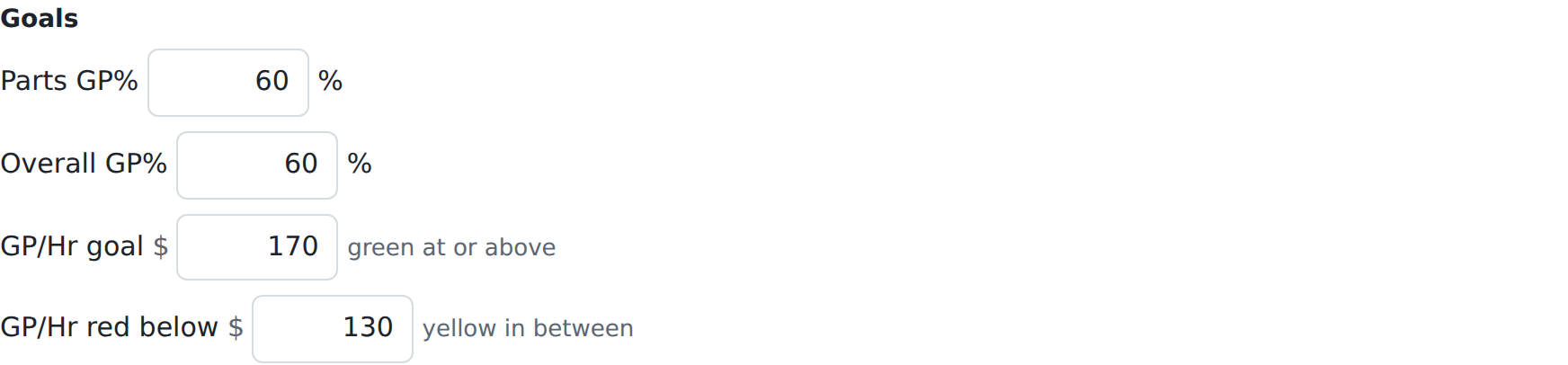
Parts GP%, Overall GP%, and GP/hr with a red line. GP/hr is what drives the audit's Get to goal section: when the approved jobs are under the goal, it lists the price and rate fixes that close the gap, biggest first, and says plainly when the rest is what's sold rather than how it's priced.
Jobs where $0 labor is OK
Free inspections and jobs with labor logged but not charged. Listed here, they aren't flagged.
Flag these RO fields when they're empty
Tick the sidebar fields the audit should insist on: Promise Time, Marketing Source, Technician, and so on.
Labor rates and matrix
Your rates by name, with the jobs or vehicles each one is for, and the labor matrix (rate by hours) if you use one. The audit flags a job billed at a rate that isn't one of yours, and Get to goal uses the right rate for each kind of job.
diesel, BMW, Mercedes; Oil change $70 for oil change. An oil change billed at $0 is suggested at $70, not $205.Warranty
Each rule has a name, a term in time and miles, and the words it covers; "All other repairs" catches real repairs none of the rules name. The audit flags a job that redoes a repair your shop did on the same vehicle inside its term. Maintenance, inspections, and diagnostics never carry a warranty, and front and rear are different repairs.
battery. A battery on a vehicle you put one in 14 months ago is flagged: "Check before charging." Rear wipers replaced today aren't flagged because front wipers were done last year.Priority order
Your four priorities, in order: 1 is why the customer came in, 2 the most urgent, 3 next, 4 future maintenance. Each has a name and the tag written at the start of job names in Tekmetric's Reorder Jobs window.
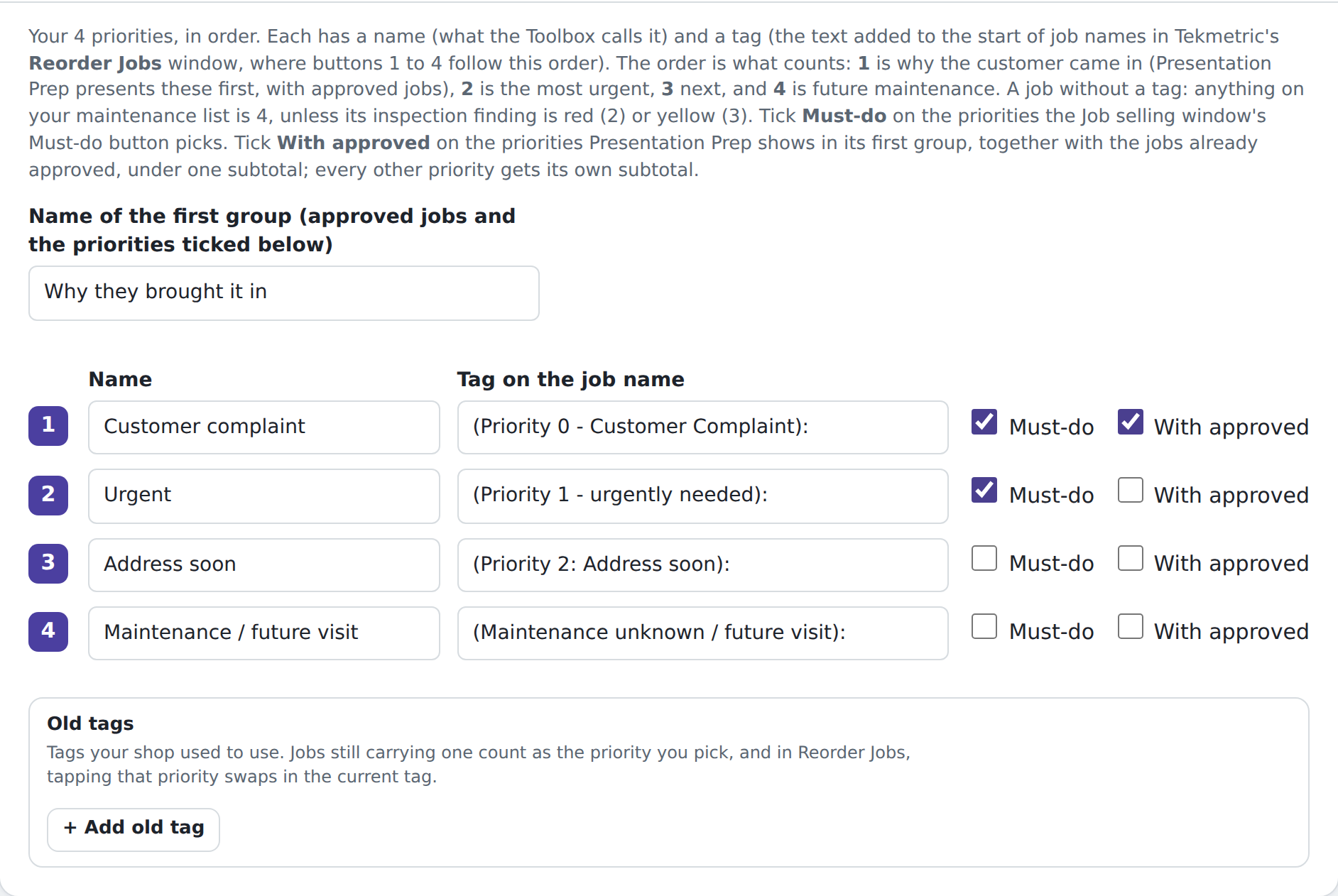
Must-do marks the priorities the Job selling window's Must-do button picks. With approved marks the ones Presentation Prep shows in its first group, together with the jobs already approved, under one subtotal; every other priority gets its own subtotal.
Presentation Prep: jobs to leave out
Jobs that never need presenting: the free inspection, shop supplies, a diagnostic the customer already approved. Type names or pick canned jobs.
Finalize
Inspection jobs are the jobs that carry the inspection's findings on the invoice (your Quick Check, for instance). Opening line is the first line of that note. Findings about a specific job go on that job instead, and come off the inspection note once the job is approved.
Oil change sticker
Turn on the sticker button, set the default interval, the oils you use, the sticker size, and the QR link (your online scheduler). Intervals can also be set per canned job or per make.
Backup and change history
Every save keeps the version before it, with who saved and what changed, for the last 30 saves. Put any version back with one click. Download backup saves everything to a file; Restore from file loads one back.
Maintenance check
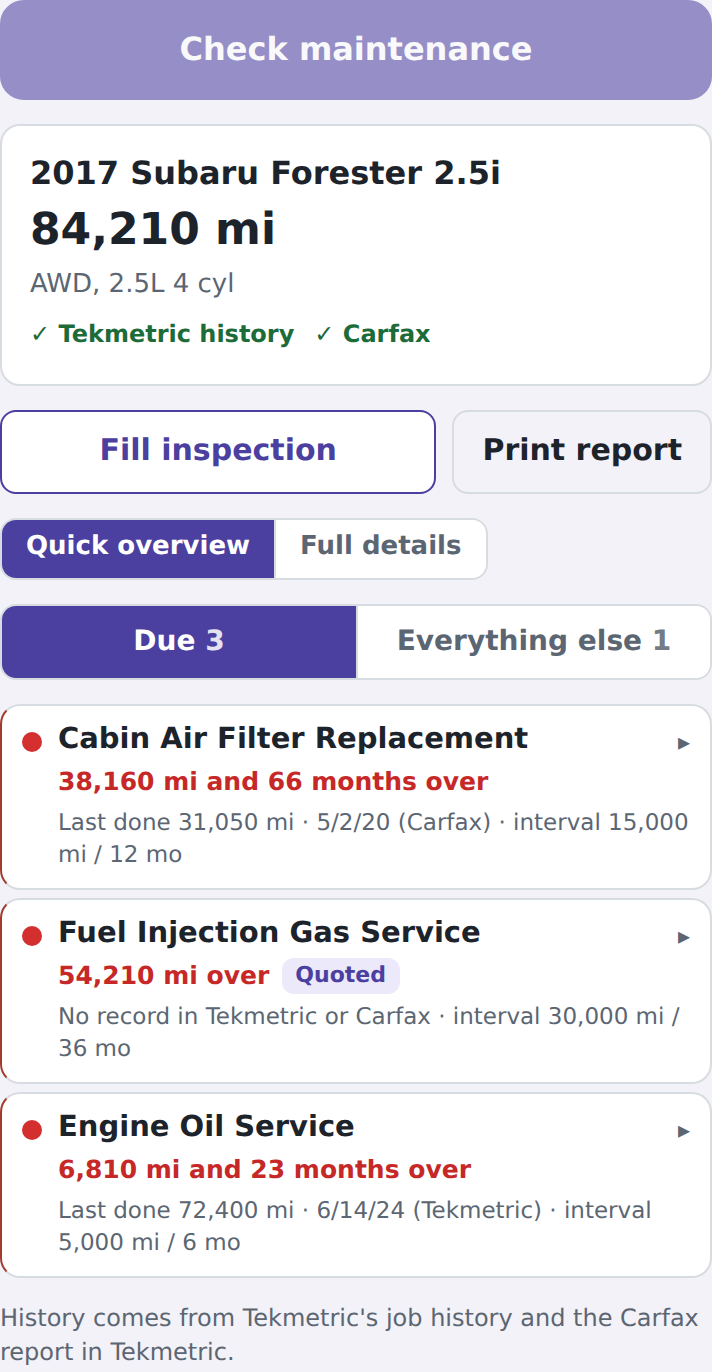
Open a repair order, click Check maintenance. The side panel reads Job History and Carfax (saved for 3 days and shared across the shop), decodes the VIN, and shows what's due. Doesn't apply and Done elsewhere record answers; Add to estimate adds the canned job; Fix matching teaches the check a history line it missed; Print report makes the customer's maintenance report.
Estimate audit
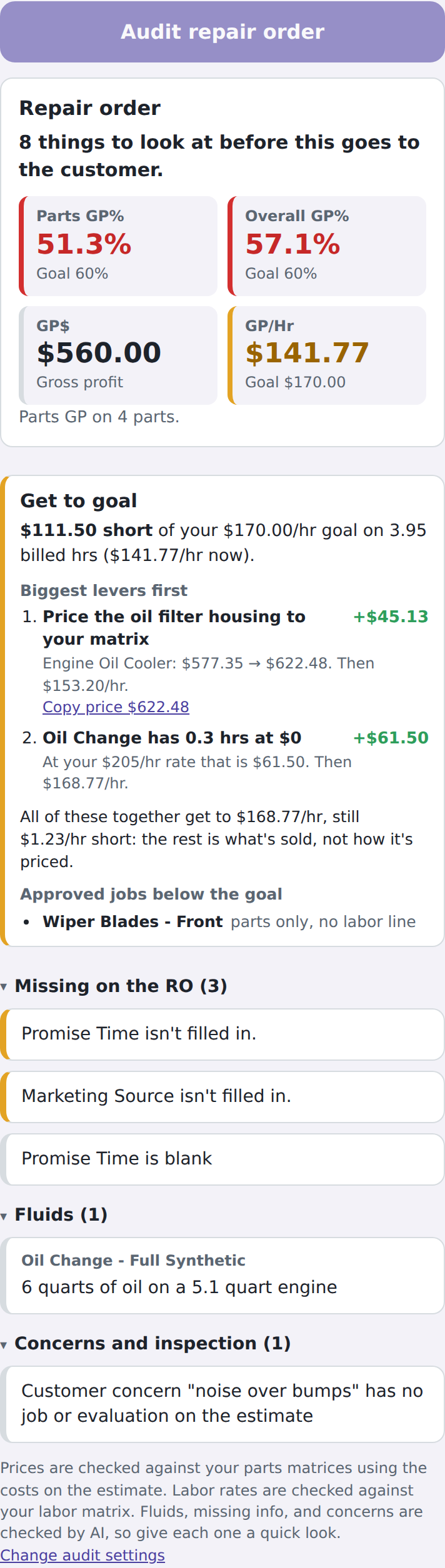
Click Audit repair order. Prices come back instantly; the rest follows in a few seconds. Each finding says what to fix and where. The Next badge on the RO title tracks what's left.
Inspection audit
On the Inspections tab, click Audit inspection. Each line gets a review: photos to add or retake, clearer wording, and markup guidance. Approve a note to write it; Mark up in Tekmetric opens the photo editor on the right photo.
Presentation Prep and Job selling
Prepare presentation builds the script from the repair order: summary, groups with subtotals, the customer's concern, and each job's "If it waits" and "Say it". Job selling is the checklist for the call: tick what they approve and watch the total.

Finalize
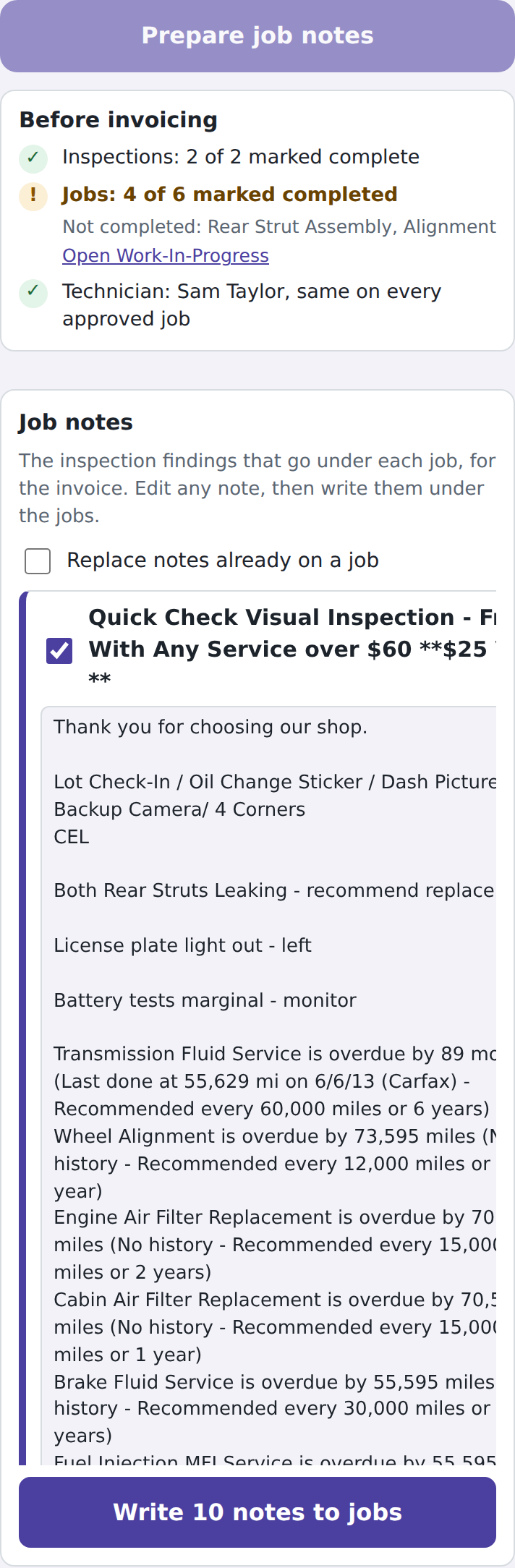
Prepare job notes opens Inspections, Work-In-Progress, and Estimate for you, reads them, and shows the notes it will write under each job plus a Before invoicing box: inspections marked complete, jobs marked completed, and the technician on the RO matching the approved jobs. Warnings only; the notes still write.
Concern helper
Start typing a customer concern in Tekmetric and the helper opens under it with the right questions for that kind of problem, each with a line to say. Tap the answers; Use this concern fills the box.
Owner report
For the product owner only: every shop's usage and AI cost, add or pause a shop, manage any team, choose the AI model per tool, and see every problem reported. Also on a phone.